
 C.K. Gupta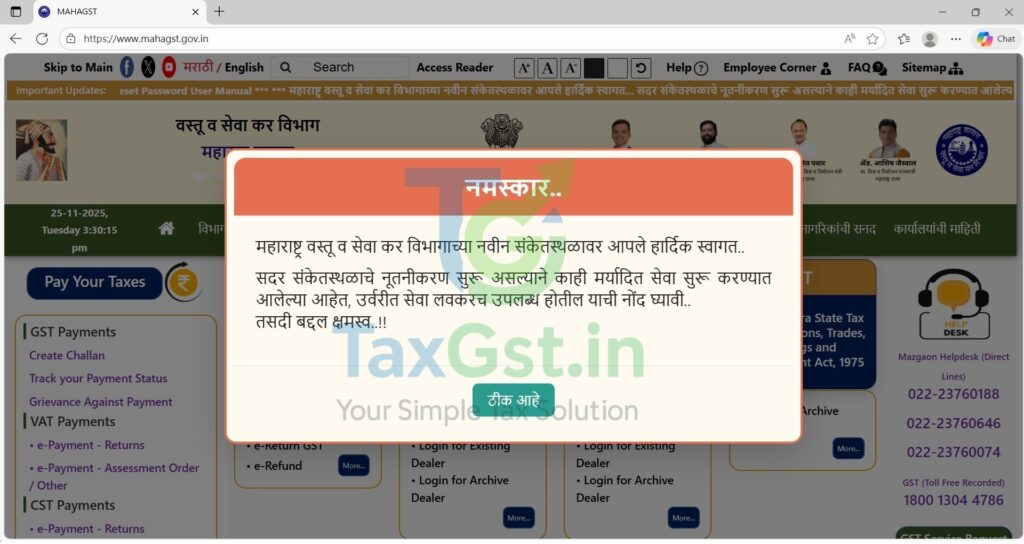
Are you trying to open the old Maharashtra Professional Tax (mahagst ptrc payment) payment page and finding that it no longer loads? Many taxpayers are facing the same issue. The Maharashtra GST Department (MahaGST) has fully redesigned its website. As part of this upgrade, old PT payment pages have been removed, and all Professional Tax Return filing and online payment services have shifted to a new dashboard. Because the menu options and URLs have changed, earlier bookmarks or saved links will no longer work.
The Maharashtra Goods and Services Tax (MahaGST) Department has implemented a significant overhaul of its official website. This renovation has caused older bookmarks and direct payment links for Professional Tax (PT) to stop functioning. Taxpayers must now use a centralized “Return Payment Dashboard” to fulfill their obligations. In this comprehensive guide, we will help you navigate the new site, understand the recent 2026 deadline changes, and calculate your exact PT liability.
Urgent 2026 Update: New Professional Tax Due Dates in Maharashtra
If you are an employer handling payroll, you must update your compliance calendars immediately. Filing PTRC after the 15th of the month will now attract late filing penalties and interest under the Maharashtra State Tax on Professions, Trades, Callings and Employments Act, 1975.
How to Make MahaGST PTRC Payment Online: Step-by-Step Guide
The new payment process requires you to use the dedicated Return Payment Dashboard to generate the necessary challan (MTR-6). Please delete your old bookmarks.
Quick Prerequisites
- TIN / GSTIN Details: Have your correct registration identity ready (PTRC or PTEC).
- Login Credentials: Keep your MahaGST username and password handy.
- Payment Details: Know your specific payment period (month/quarter/year), exact amount, and whether you owe any 1.25% monthly interest for late filing.
Access the Official Payment Dashboard:
Direct URL: https://www.mahagst.gov.in/dashboard/return-payment
New Process to Generate MTR-6 Challan

- Access the Portal: Open the new Payment Dashboard using the official link.
- Select Act: Choose the relevant Professional Tax Act (PTRC for employers, PTEC for self-employed).
- Select Financial Year: Choose the correct FY (e.g., 2026-2027).
- Form ID: Select the correct challan form ID, which is typically MTR-6.
- Determine Periodicity: Choose Monthly (if your liability was > ₹1,00,000 in the previous year) or Annual.
- Enter Amount: Input the tax amount carefully without using commas. If you are paying past the 15th, use the dedicated fields to enter Interest or Penalty.
- Location: Select your registered circle/location as per your MahaGST registration details.
- Make Payment: Enter your mobile number and click “Proceed to Payment” to generate the challan. You can pay via Netbanking (GRAS), Debit Card, or UPI.
What to Do If Payment Fails or No GRN is Generated
Sometimes the server times out during the transaction. Follow these steps:
- Check your bank transaction history first — sometimes the bank debits the amount, but the portal returns an error.
- If the bank was debited but the portal shows “Failed,” note down the Bank Reference / UTR number. The portal typically reconciles after 24-48 hours. Check your Payment History tab for a processing entry.
- If the issue persists, raise a service request via the MahaGST Helpdesk. Do not attempt a second payment immediately.
Practical Tips & Checklist Before Payment
Watch Out For:
- Correct TIN/GSTIN: A wrong TIN will cause a mismatch. Verify before submission.
- Payment Type: Choose the exact category (e.g., PTEC vs PTRC).
- Pop-up Blockers: Disable them temporarily as the payment gateway (GRAS) opens in a new window.
- Save Proof: Keep screenshots of the GRN screen and bank success page until you download the final receipt.
Pre-Payment Checklist:
- ✅ TIN/GSTIN/PTEC verified.
- ✅ Payment type selected correctly.
- ✅ Period (Month/Year) & Amount double-checked.
- ✅ Bank/Payment method ready and OTP available.
- ✅ Download Receipt / GRN saved after payment.
Understanding Your Payment: PTRC vs. PTEC
Before generating a challan on the new MahaGST portal, you must select the correct registration type. The portal distinguishes between two types of Professional Tax certificates:
| Feature | PTRC (Employers) | PTEC (Self-Employed) |
|---|---|---|
| Full Form | Professional Tax Registration Certificate | Professional Tax Enrollment Certificate |
| Who Pays? | Employers (Companies, LLPs) on behalf of their salaried employees. | Self-employed professionals (Doctors, CAs, Lawyers, Directors). |
| Frequency | Monthly (if liability > ₹1 Lakh) or Annually. | Annually (A fixed amount, usually ₹2,500). |
| Due Date | 15th of the following month. | June 30th of the financial year. |
Maharashtra Professional Tax Slab Rates (FY 2026-27)
When filing your PTRC return on the new dashboard, ensure you are deducting the correct amounts from your employees. The maximum PT that can be levied is capped at ₹2,500 per year as per Article 276 of the Indian Constitution. In Maharashtra, the tax slabs differ slightly for men and women.
| Gross Monthly Salary (₹) | PT for Men (₹) | PT for Women (₹) |
|---|---|---|
| Up to 7,500 | Nil | Nil |
| 7,501 to 10,000 | 175 per month | Nil |
| 10,001 to 25,000 | 200 per month (₹300 in Feb) | Nil |
| Above 25,000 | 200 per month (₹300 in Feb) | 200 per month (₹300 in Feb) |
Note: Exemptions apply to senior citizens (above 65 years), physically disabled individuals, and parents of children with mental or permanent disabilities.
How to check past PT payments on MahaGST?
Login to the portal → Go to e-Payments → Payment History → PT / OTPT Payment. You can search by your TIN, a specific date range, or your GRN number to view and download earlier MTR-6 receipts.
Frequently Asked Questions (FAQs)
Why is my old Professional Tax payment link on MahaGST not working?
What is the new due date for Maharashtra Professional Tax in 2026?
Can I pay interest and penalty for late PT payment on the new dashboard?
Which Form ID must be selected to pay Professional Tax (PT)?
How do I determine if I should pay PT Monthly or Annually?
Do I need a separate login to access the new PT payment dashboard?
Article Information
Published: July 14, 2026
Category: State Tax & Compliance
Regulatory Body: Maharashtra Goods and Services Tax Department
Written by C.K. Gupta, M.Com & Tax Editor at TaxGST.in — helping businesses navigate state tax portals, GST compliance, and return filing since 2009.
Official Resources
Disclaimer: This article is for informational purposes only. Portal designs, tax slabs, and payment procedures are subject to change by the Government of Maharashtra. Always refer to the official mahagst.gov.in website for the most current legal processes.
Related Reading
ITR, GST returns, notices and registrations — fixed fees, human support, on-time filing.
Discover more from TaxGst.in
Subscribe to get the latest posts sent to your email.

Never Miss a Tax Deadline Again
Due-date alerts, GST updates and tax tips — free on the app you already use.
event Next: GSTR-1 · 11 Oct